
If you’ve set up scheduled emails for Salesforce Reports or Dashboards but recipients aren’t getting them, the most common reason is an unverified email address or a missing DKIM key. Here’s how to fix it, step by step.
Step 1 — Check the Sending User’s Email
Go to Setup → Users and look at the user who owns the subscription. If their email shows a “Verify” button next to it, that email hasn’t been verified yet. Click it and complete the verification before anything else.
Step 2 — Check the Reply-To Email Address
The same user may also have a separate Reply-To address configured. Go check that too. If it shows “Verify”, it also needs to be confirmed — unverified reply-to addresses can silently block subscription emails.
Step 3 — Set Up a DKIM Key (If You Don’t Have One)
A DKIM key is basically a digital signature that proves your Salesforce emails are legitimate. If your org doesn’t have one set up yet, Salesforce may be blocking outgoing subscription emails as a security measure.
Go to Setup → DKIM Keys and create one. Follow Salesforce’s recommended best practices when configuring it.
Step 4 — Check the Org-Wide Email for Report/Dashboard Subscriptions
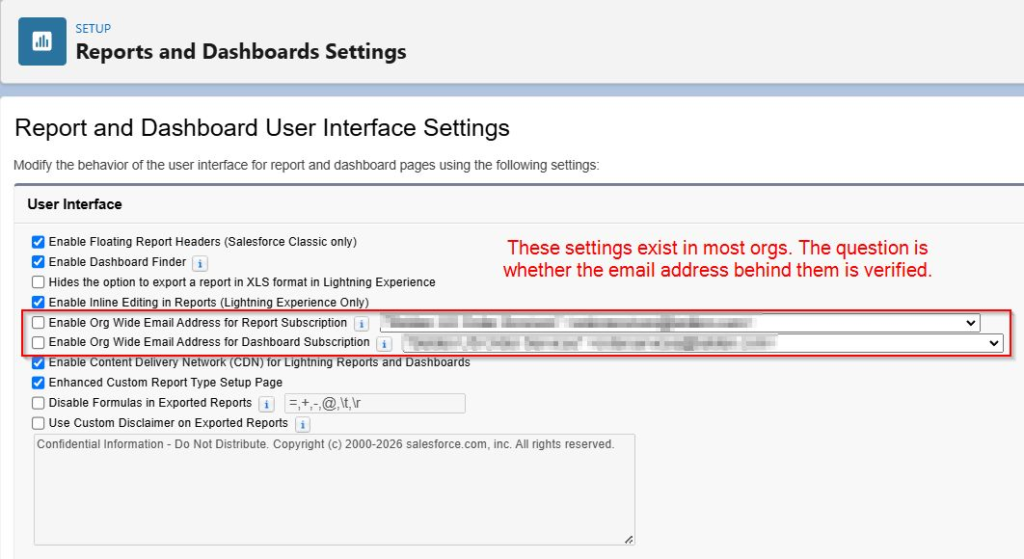
Some orgs use a single shared “org-wide” email address for all report and dashboard subscription emails. To check:
Go to Setup → Reports and Dashboards Settings and look for “Org Wide Email Address for Report/Dashboard Subscription.”
If one is configured there, that email address must also be verified — otherwise subscriptions sent from it will fail silently.
After All Steps Are Done
Once everything above is verified:
- Unsubscribe from the affected report or dashboard
- Re-subscribe to it fresh
- Monitor whether the emails start arriving
If the problem still persists after all this, raise a new support case with Salesforce Support.
Quick Reference Links
- Troubleshooting Email Subscription Failures for Salesforce Reports and Dashboards
- How to verify email addresses in Salesforce
- How to verify Reply-To addresses
- How to create a DKIM key
- Org-Wide Email for Report Subscriptions
- Org-Wide Email for Dashboard Subscriptions